

Creating a drop shadow effect for your text is as easy as selecting the text and applying a preset. You can use a preset as a starting point, then adjust the shadow settings to suit your design.
Add a text shadow
- Select the text box you want to edit.
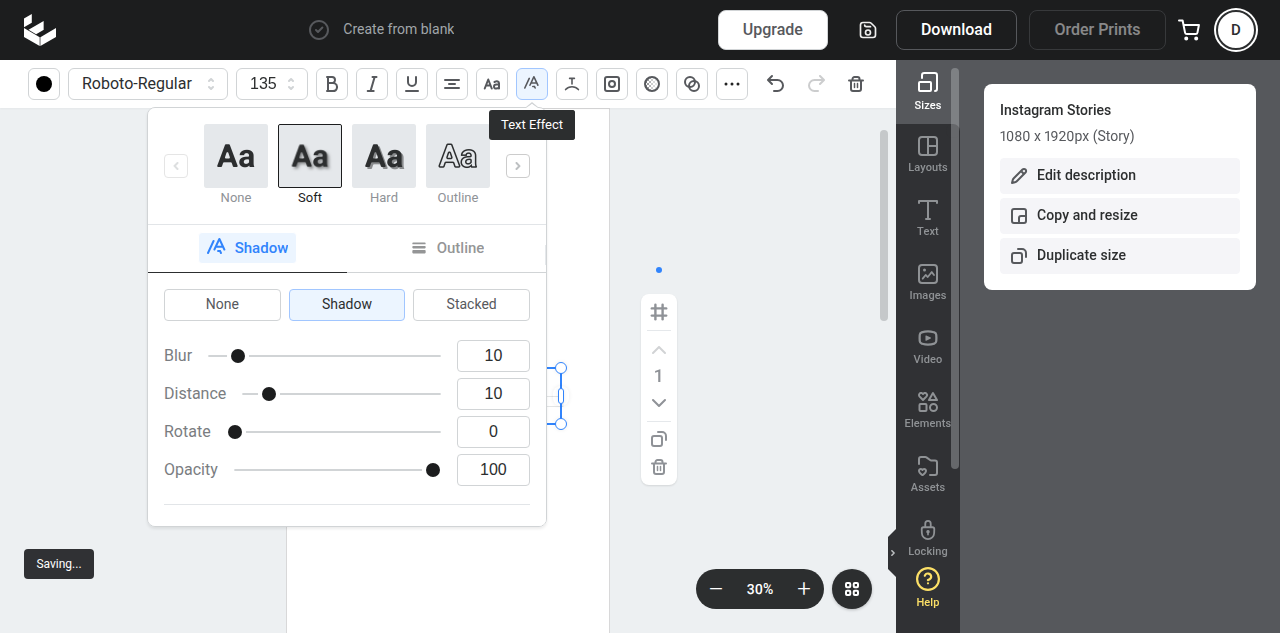
- Open Text Effects in the action bar.
- Select one of the preset shadow options, such as Soft Shadow, Hard Shadow, or Glow.
- To customise the shadow, choose the Shadow tab and adjust the available controls.
You can edit the blur, distance, rotation, opacity, and colour of a shadow. Lower the Opacity setting when you want a softer or more transparent shadow without changing the shadow colour.
Use different shadow styles
The Shadow tab includes different shadow styles, including Shadow, Glow, Long, and Stacked. Select the style you want, then use the sliders and colour picker to control how the effect appears on your text.
The three default Text Shadow presets — Soft Shadow, Hard Shadow, and Glow — are demonstrated here:
(Press the enlarge icon above to watch this video at full screen size.)
Remove a text shadow
To remove the shadow or effect, open Text Effects and select None.