

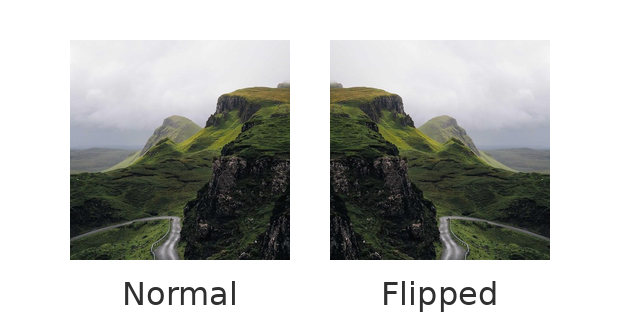
Flipping an element mirrors it across its horizontal or vertical axis. Use this when you want an image, graphic, shape, line, or supported element to face the other way, create a reflected layout, or quickly balance a design without searching for a new asset.
Text boxes do not include the Flip options in the Actionbar. If your design includes readable text, keep it unflipped so it remains easy to read.
Flip an object
- Open your design in the Easil editor.
- Select the image, graphic, shape, line, or supported element you want to mirror.
- Click Flip Vertically or Flip Horizontally in the Actionbar.

When to use each flip option
- Use Flip Horizontally when you want an object to face the opposite direction, such as a person, arrow, icon, or product image.
- Use Flip Vertically when you want to turn an object upside down or create a vertical reflection effect.
The selected object stays in the same position on the page, but its contents are mirrored.
Tips for flipped objects
- Text boxes cannot be flipped from the Actionbar.
- If the object includes readable text as part of an image or graphic, check the design after flipping. Text may appear mirrored and become difficult to read.
- If the object is inside a group, select the individual object first when you only want to flip one item.
- If the object is part of a locked team template, the flip options may be unavailable depending on the template restrictions.
- Use Undo if the flipped direction is not what you expected.