

Adding a new page gives you another blank canvas in the same design. This is useful when you want to create a multi-page design, add a second layout option, or keep matching content together in one file.
Add a page on desktop
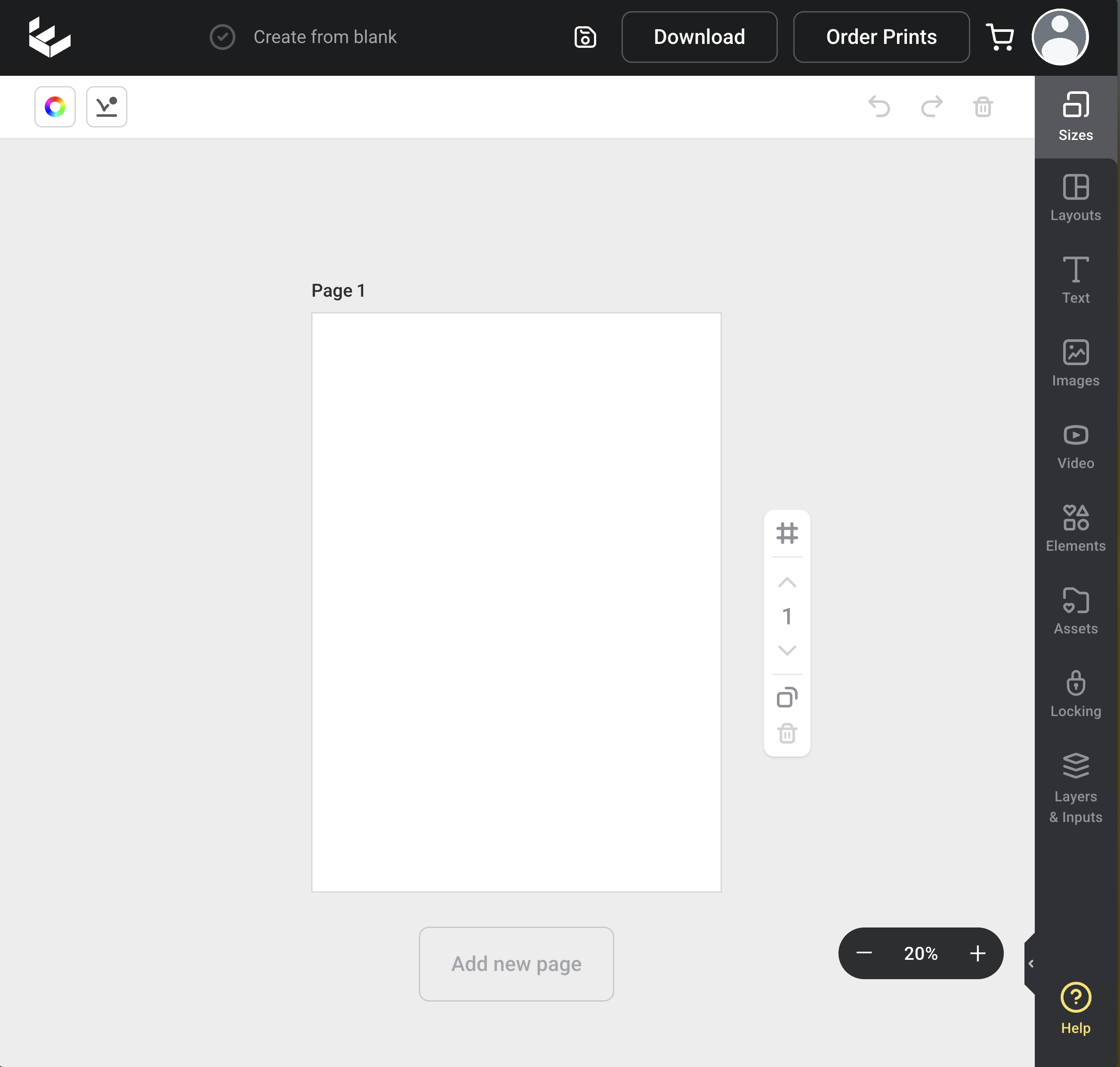
- Open your design in the Easil editor.
- Scroll to the bottom of the current design pages.
- Click Add new page.
Easil adds a blank page to the end of your design.
Add a page on mobile
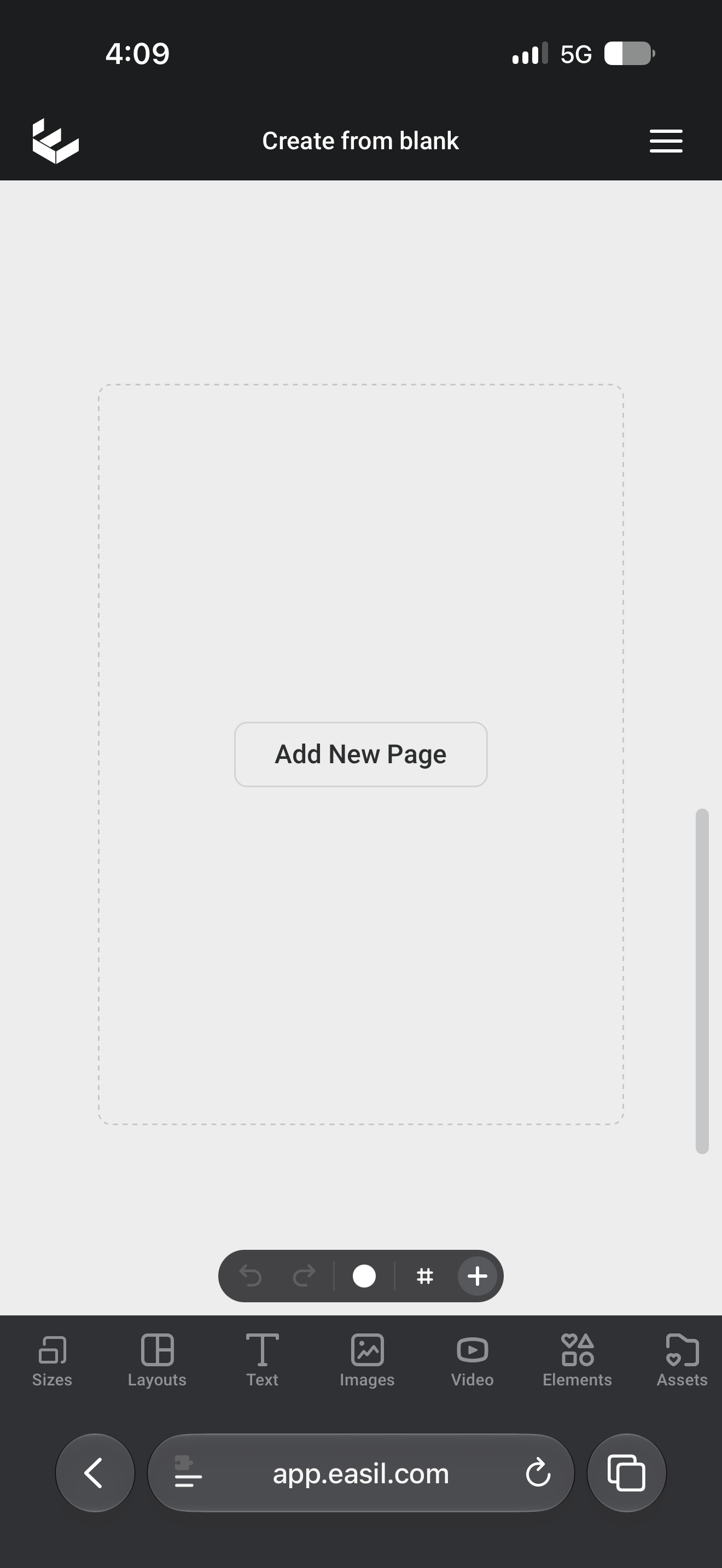
- Open your design in the Easil editor on your mobile device.
- Swipe down through your design pages until you reach the Add New Page panel after the final page.
- Tap Add New Page.
Easil adds the new page and moves you to it, so you can start editing straight away.
If you cannot add a page
Some team templates may restrict adding new pages. If the Add New Page option is not available, the design may have page restrictions applied by your Team or Brand Manager.