
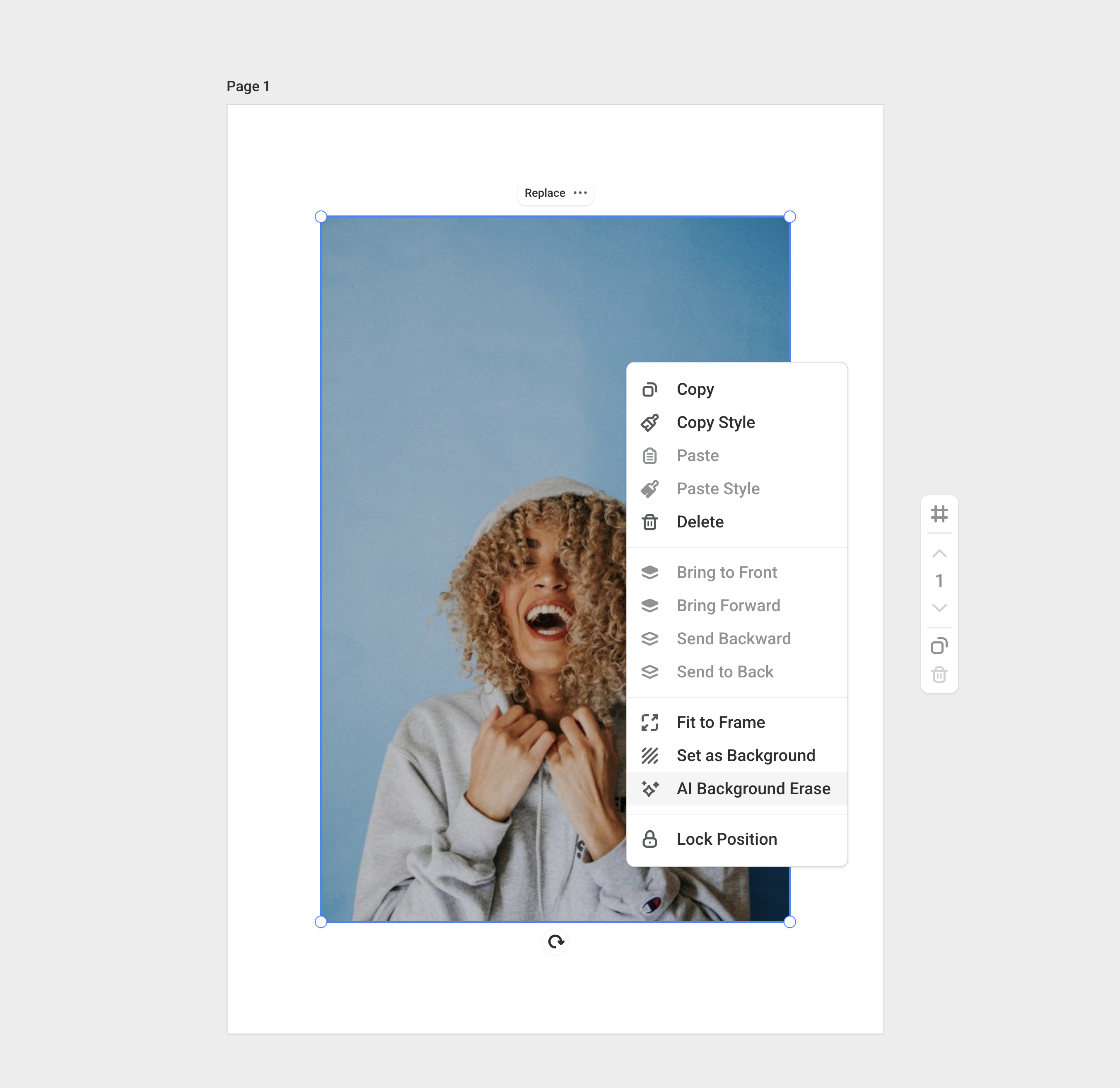
Use AI Background Erase to remove the background from a photo or image directly from your design canvas. Easil creates a new transparent-background copy of the image and saves it to My Images, so you can reuse it in the same design or in future designs.
Remove a background from the editor
- Open your design in the Easil editor.
- Add an image to the canvas from the Images tab, or select an image that is already in your design.
- Right-click the image on the canvas.
- Select AI Background Erase.
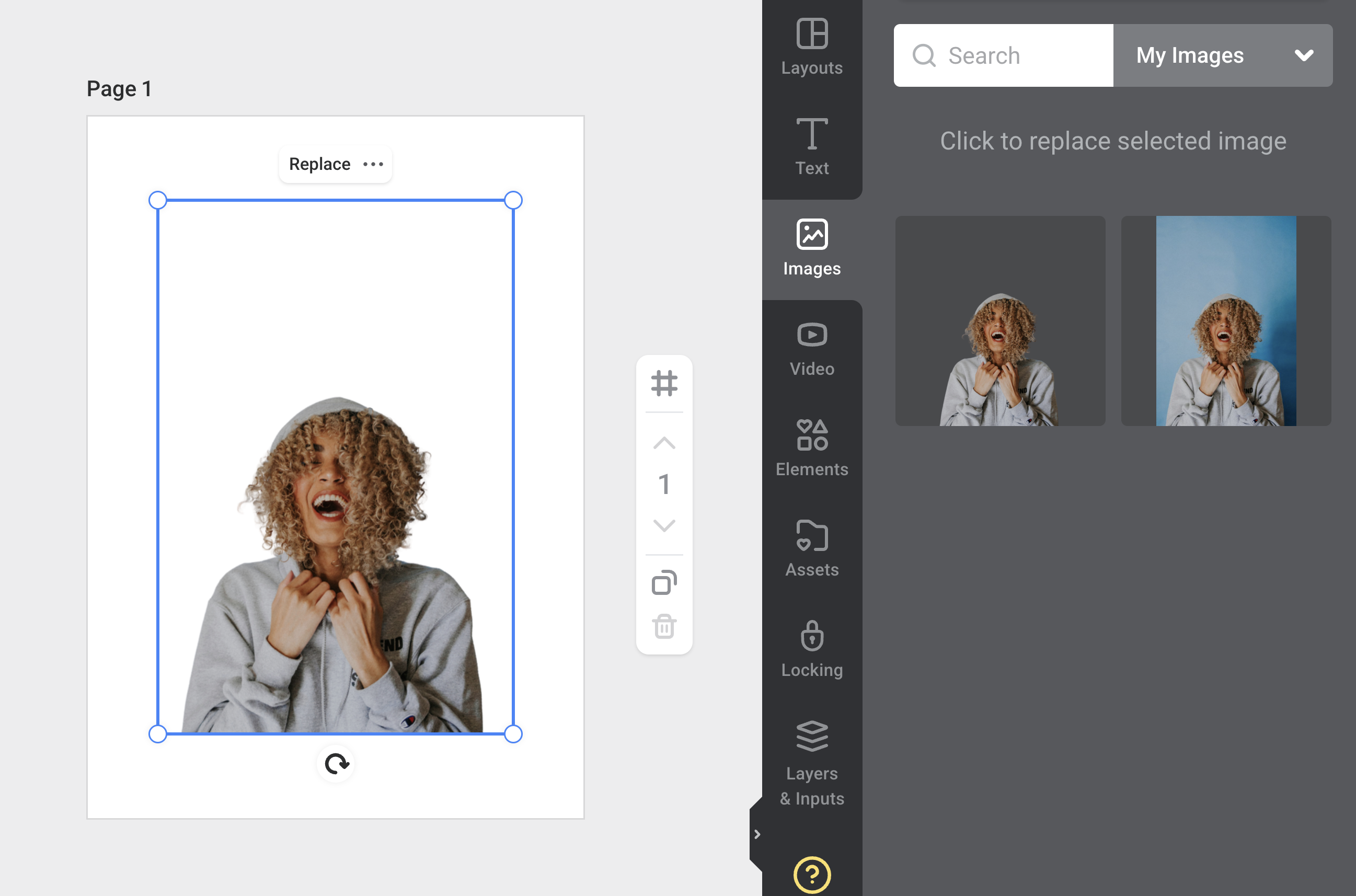
- Wait for Easil to process the image. The selected image will update on the canvas, and a new transparent-background copy will be saved in My Images.
Reuse the edited image
After the background has been removed, the new image copy appears in the same My Images library as your original image. You can click or drag it into any design like a regular uploaded image.
Your original image is not deleted, so you can keep both versions and choose the one that suits your design.
Choose a suitable image
Background removal works best when the image has a clear subject and a distinct background. Photos of people, products, animals, food, or objects usually work well when the subject is easy to identify.
For best results:
- use images with a clearly defined foreground subject,
- avoid very busy backgrounds where the subject blends into the scene,
- avoid blurry, low-resolution, or heavily cropped images,
- use JPG or PNG images within the upload size limits.
Background removal access
Background removal is available on paid Easil plans. Basic users and free trials do not have access to the feature.