

Page View gives you an overview of every page in a multi-page design. Use it when you want to scan your full design, jump to a specific page, or make page changes without moving through the canvas one page at a time.
Open Page View
- Open a design in the Easil editor.
- On desktop, select the Page View grid icon beside the zoom controls near the bottom corner of the editor.
- On mobile, pinch to zoom out on the canvas until Easil opens Page View.
You can also open Page View from the editor menu when it is available.
Easil switches to a grid of page thumbnails. Each thumbnail shows the page design so you can quickly compare pages and choose the one you want to work with.
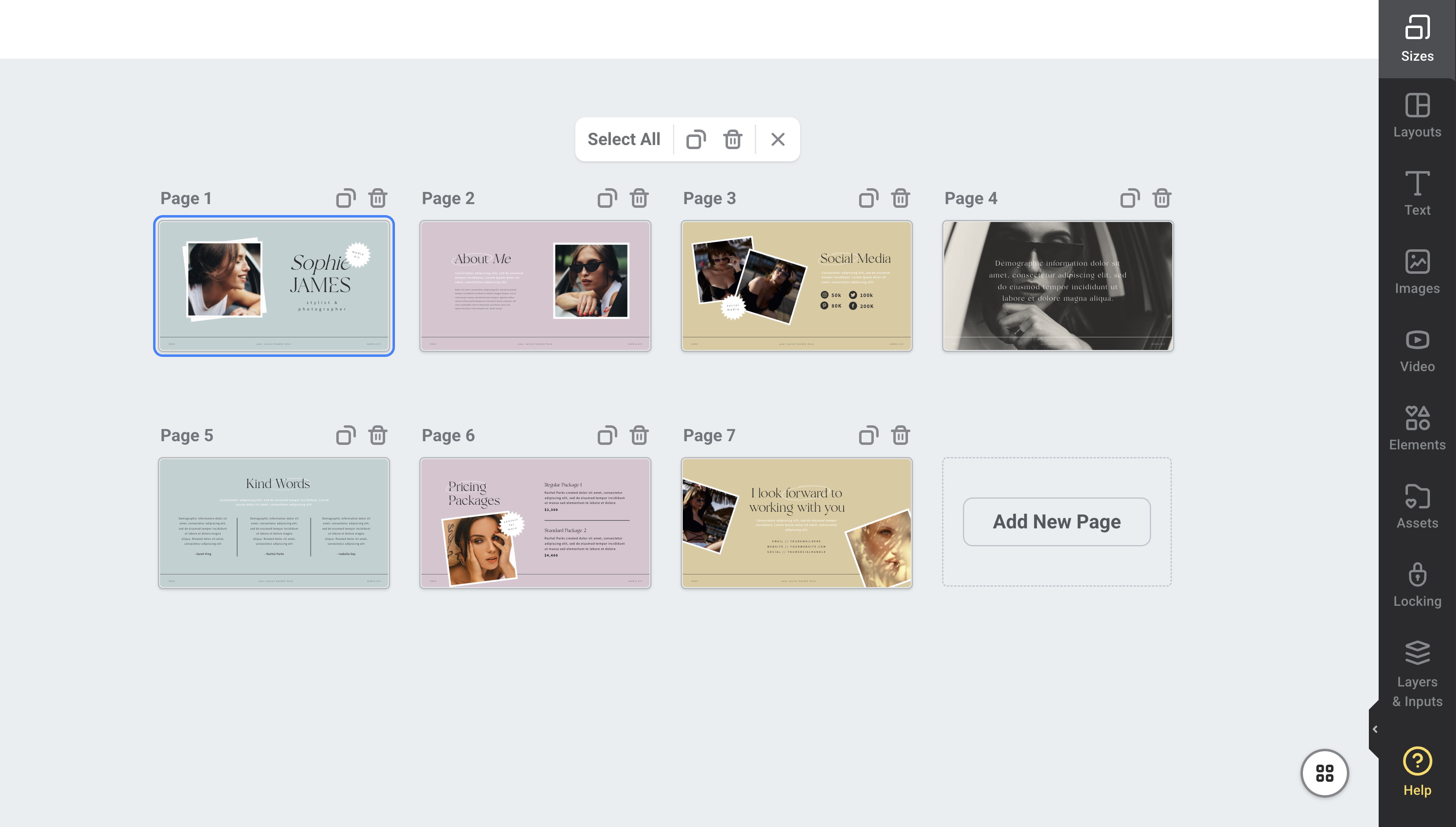
Select or open a page
- Select a page thumbnail or page name to make that page active while staying in Page View.
- Double-click a page thumbnail or page name to open that page on the canvas and leave Page View.
You can also select Exit Page View, or use the Page View button again, to return to the normal canvas.
Manage pages from Page View
From Page View, you can:
- Select Select All to select every page in the design.
- Use the duplicate icon to copy the selected page or pages.
- Use the bin icon to delete the selected page or pages.
- Drag pages into a new order.
- Select Add New Page to add another page to the design.
Some actions may be unavailable depending on your design settings or restrictions. For example, deleting pages is only available when the design has more than one page.
Rename a page
Double-click the page name in Page View to edit it. Enter the new page name, then click away or press Enter to save it.
When to use Page View
Page View is useful for longer designs, presentations, menus, social story sets, and other designs with several pages. It helps you review the flow of the design, reorder pages, and manage repeated pages from one place.