

The page right-click menu gives you quick access to common page and canvas actions while you are working in the Easil editor. It is useful when you want to paste content onto a specific page, duplicate or delete a page, or quickly turn page guides on and off.
Open the page right-click menu
- Open your design in the Easil editor.
- Move your cursor over an empty area of the page background.
- Right-click the page background.
- Choose the action you want to use from the menu.
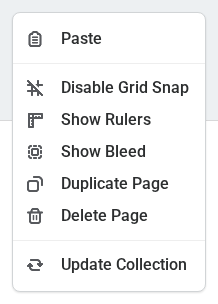
If you right-click on a text box, image, table, shape, or another design element, Easil opens the menu for that element instead. Right-click an empty part of the page when you want page-level options.
Page right-click menu options
From the page right-click menu, you can:
- Choose Paste to paste copied elements onto the page you right-clicked.
- Choose Enable Grid Snap or Disable Grid Snap to change whether elements snap into position as you move them.
- Choose Show Rulers or Hide Rulers to turn rulers and guides on or off.
- Choose Show Bleed or Hide Bleed when your design size includes bleed.
- Choose Duplicate Page to make a copy of the page.
- Choose Delete Page to remove the page from your design.
If your design is part of a collection, you may also see Update Collection in this menu.
When options are unavailable
Some page actions may be unavailable depending on the design you are editing. For example, Delete Page is only available when your design has more than one page, and Show Bleed only appears for designs that include bleed.
If the design is a team template with restrictions, some page or element actions may also be limited by the template settings.
Tips for using page actions
- Use Duplicate Page when you want to create a second page with the same layout before changing the text, images, or colours.
- Use Show Rulers with grid snap when you need more control over positioning.
- Check the selected page before using Paste, as copied elements are added to the page you right-clicked.
- Use Show Bleed before downloading print artwork so you can check important content stays inside the safe area.