

When you open a design in Easil, you may see a warning if the design uses fonts that are not available in your current team. This can happen when a design was created in another team, uses a Brand Kit font that has been removed, or includes an uploaded font you do not have access to.
The warning helps you spot font access issues before you continue editing, downloading, or sharing the design.
Check which text is affected
- Open the design in the Easil editor.
- If the unavailable fonts warning appears, select Highlight to show the text that uses fonts your current team cannot access.
- Review the highlighted text, table cells, or curved text in the design.
- Select Ignore when you are ready to keep editing.
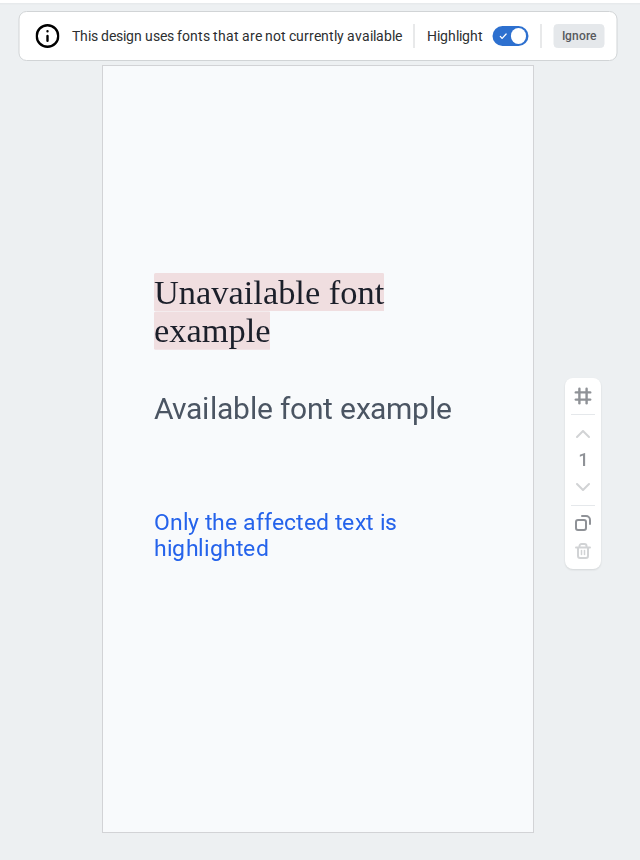
Highlight is off by default, so your design does not show extra highlighting unless you choose to turn it on.
Fix unavailable fonts
To resolve the warning, select the affected text and choose a font that is available in your current team. If the design should keep using a specific uploaded or Brand Kit font, ask a team admin to add that font back to the team or Brand Kit.
If you are working across multiple teams, check that you are in the correct team before changing the design. Fonts uploaded in one team may not be available in another team.
Notes
The warning does not change the design automatically. It only lets you know that one or more fonts may not be available to the team you are currently using.