

Use the zoom controls when you need a closer look at part of your design, or when you want to zoom out and see more of the full page on screen. Zoom changes how large the design appears while you are editing. It does not change the actual size of your design or the size of any element on the canvas.
Zoom in or out
- Open your design in the Easil editor.
- Find the zoom controls near the bottom corner of the editor canvas.
- Select + to zoom in and view your design in more detail.
- Select - to zoom out and see more of the page or surrounding workspace.
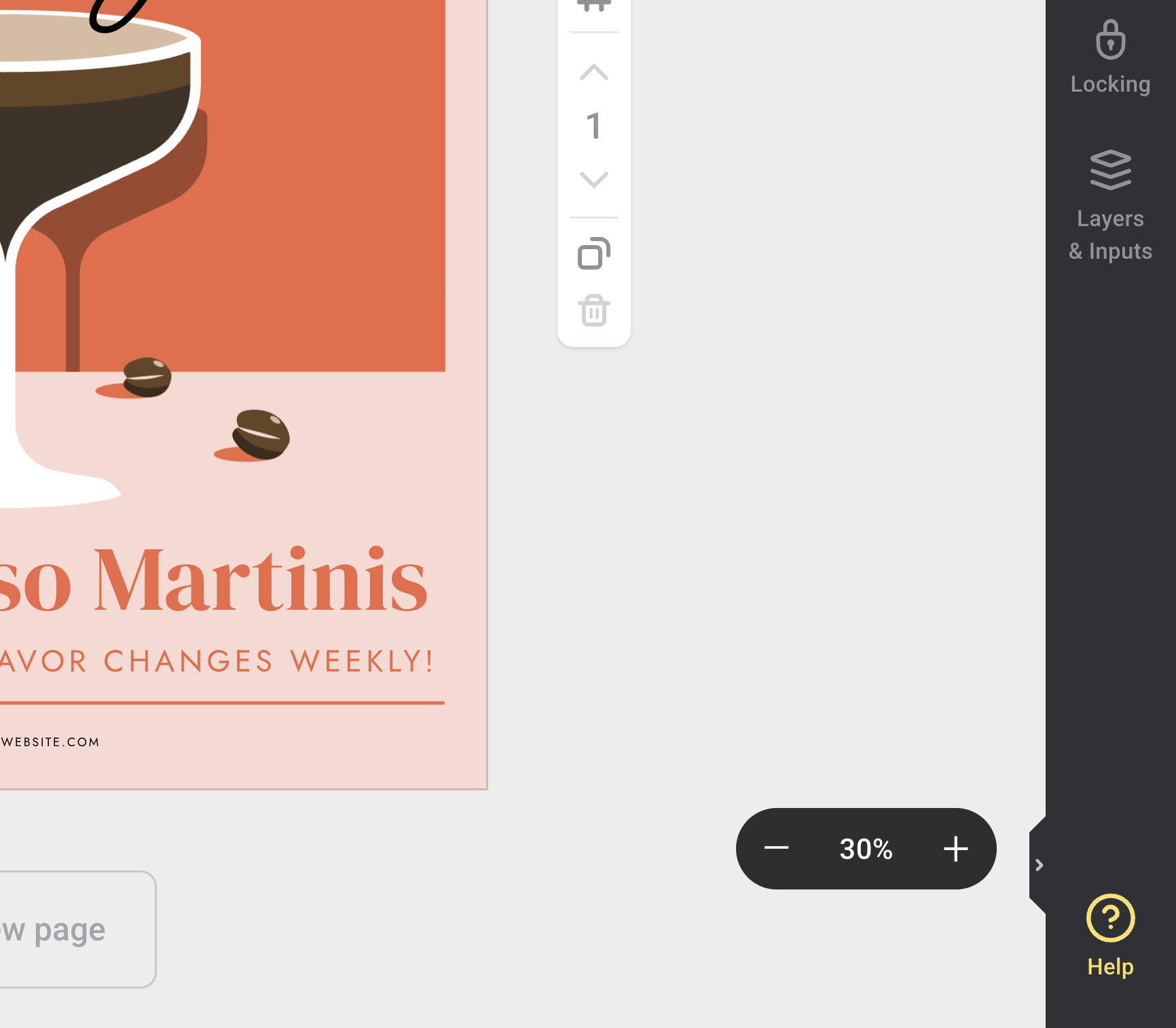
Zooming is especially helpful when you are aligning small objects, checking text placement, or reviewing the edge of a design before downloading or printing.
Choose a zoom preset
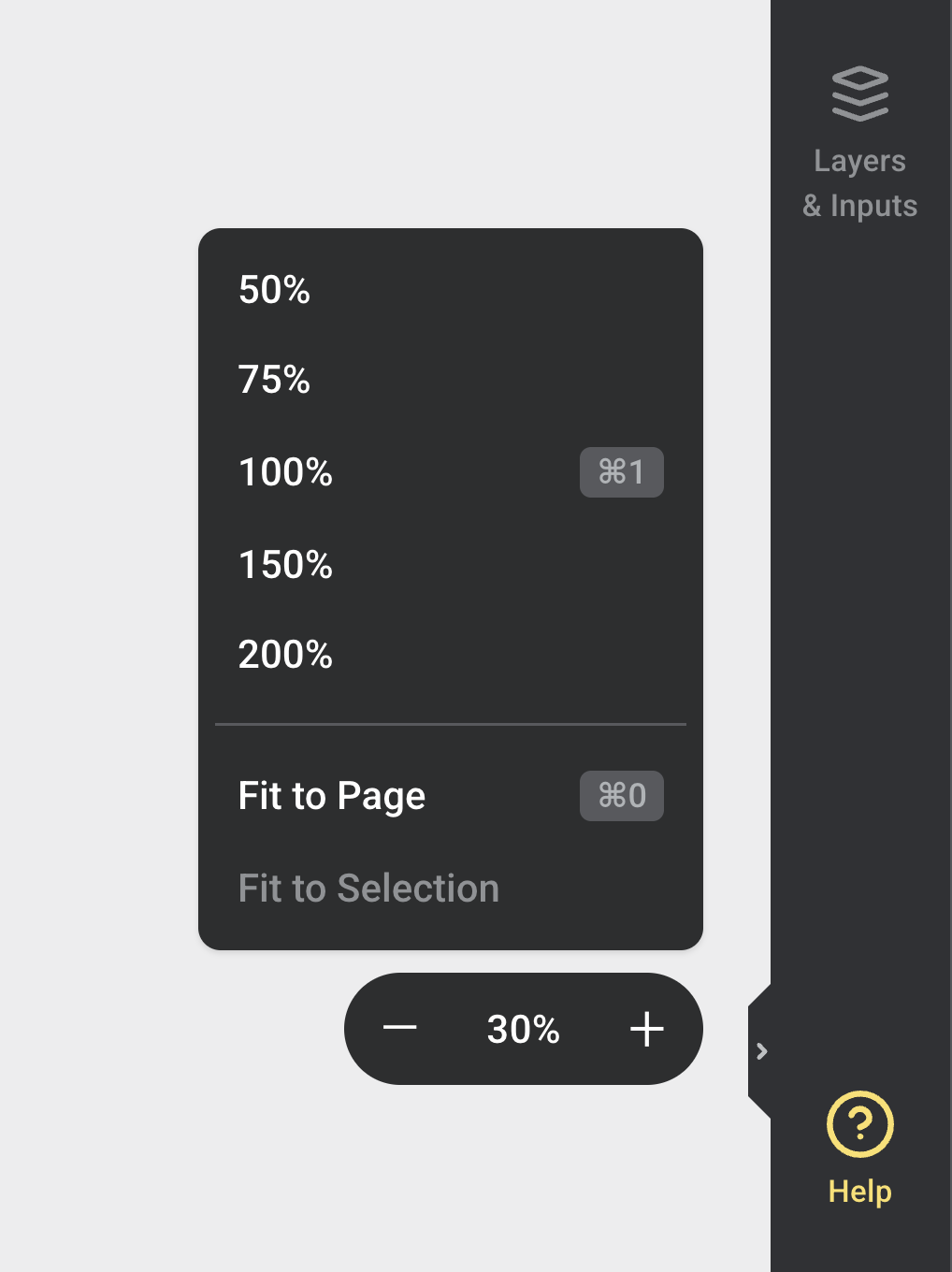
Select the percentage in the middle of the zoom controls to open the zoom preset menu. From here, you can choose a preset percentage, such as 50%, 75%, 100%, 150%, or 200%.
You can also select Fit to Page to bring the full page into view, or Fit to Selection to zoom the canvas around the element you currently have selected.
Check the design at a comfortable size
If the canvas feels too large or too small while you work, adjust the zoom before continuing. You can zoom in for detailed edits, then zoom out again to check the overall layout.
For print designs, zooming in can help you inspect fine details, but it does not replace downloading and checking a proof before ordering.
If zoom does not change your design size
Zoom only changes your editor view. If you need to create the design in another size, use the resize options instead. See How to resize your Design for resizing a design into another format.